

Translated messages
Write in your language, read in yours, send voice messages, photos and files.
In a chat, everyone writes in their own language. LibComPlus translates each message for the person reading it.
Start a conversation
In the Chats tab, tap the round button to open the create menu.
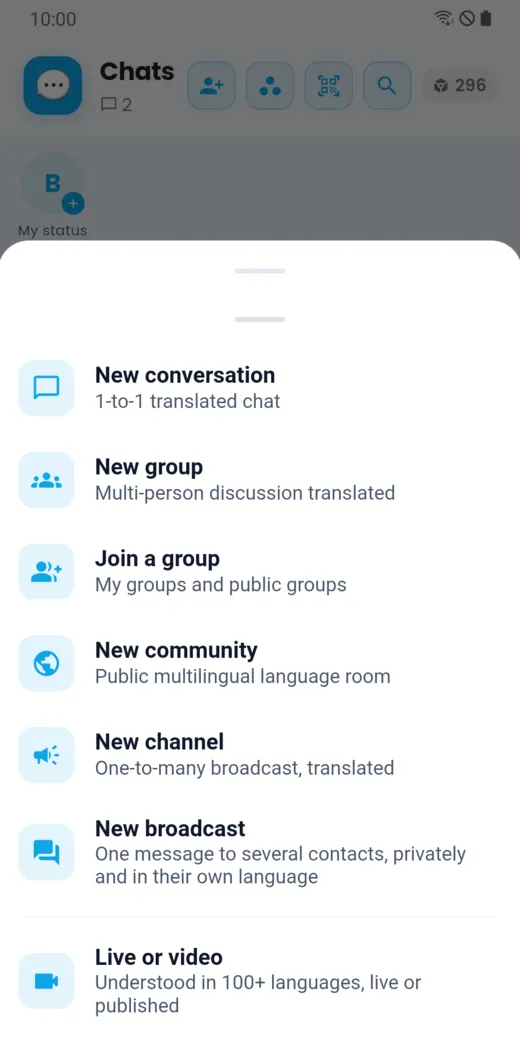
You can create:
- a conversation between two people;
- a group chat, or join an existing group;
- a community (a public space on a theme) or a channel (one person broadcasting to many);
- a broadcast: one message sent privately to several contacts, in each one’s language;
- a live or a video.
Read and write
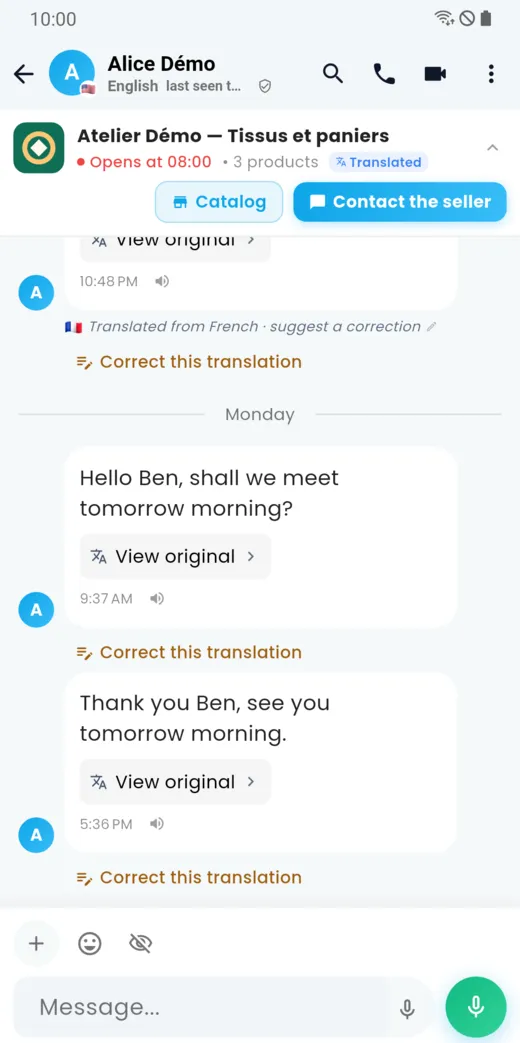
Write your message in your language and tap the send button. The other person reads it in theirs. Under each translated message:
- “View original” shows the text as it was written;
- “Correct this translation” lets you suggest a better version;
- the speaker button “Listen” reads the message aloud.
Choose what you see
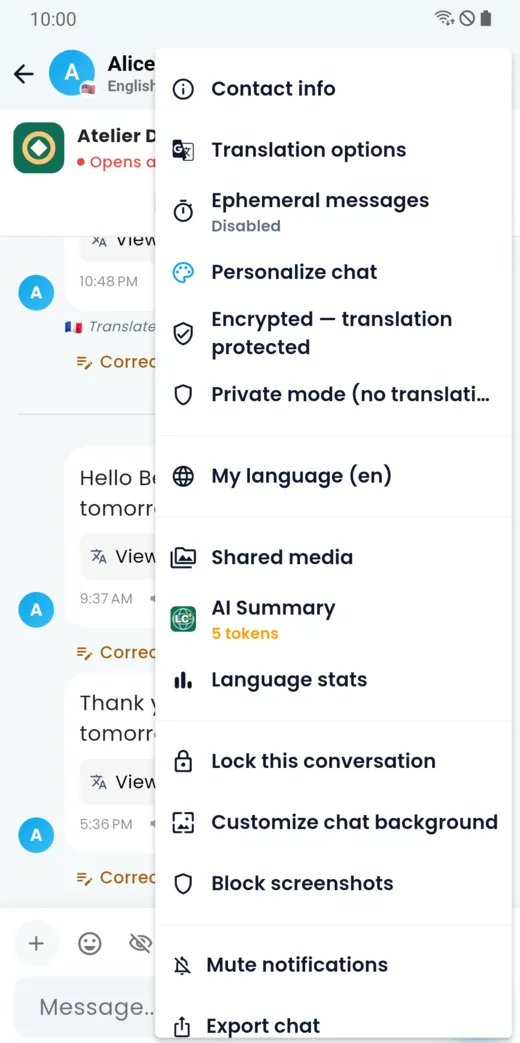
In a conversation, tap ⋮ (More options), then Translation options.
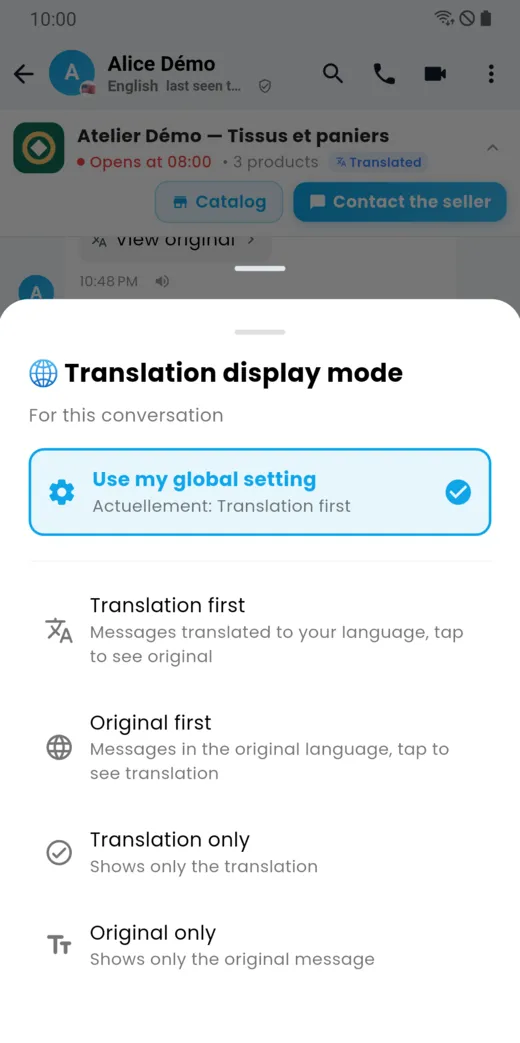
Four modes are available: translation first, original first, translation only or original only. You can set them for one conversation, or keep your global setting.
Voice messages
Hold the microphone button to record a voice message. The message is transcribed and translated for the other person, who can also listen to it. One button sends your voice in the contact’s language, and another lets you dictate a message instead of typing it.
Photos, files and other attachments
Tap the + button in the message box.
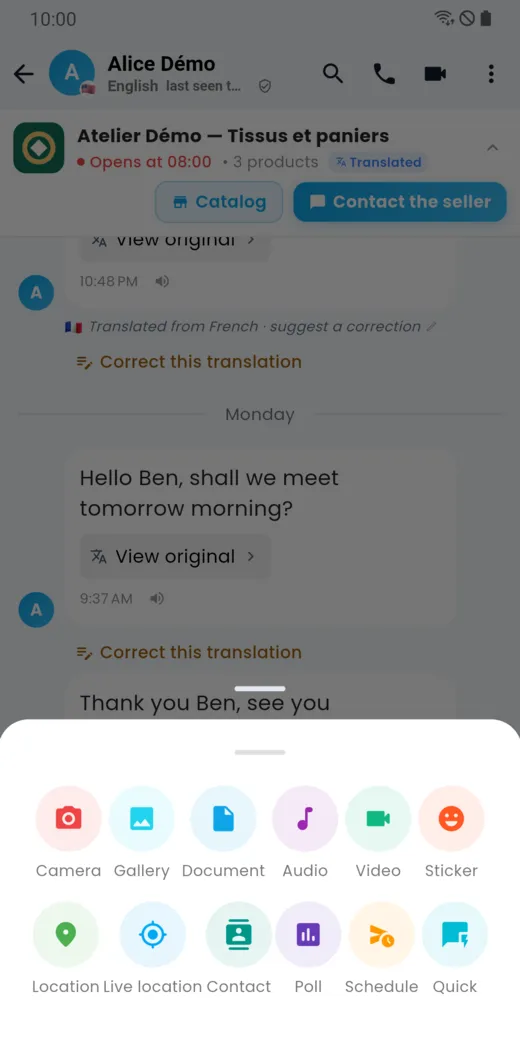
You can attach a photo taken on the spot, an image from the gallery, a document, an audio or video file, a sticker, a place (and your live location, if you decide to), a contact or a poll. You can also schedule a message.
Disappearing messages and private mode
The conversation menu lets you turn on disappearing messages (they vanish after a delay), lock the conversation, block screenshots, mute the conversation or export it. Private mode sends without translation.
Block or report someone
These actions are in Contact info. The guide “Account, languages and privacy” describes them.
Doesn’t this page answer your question?
Ask it in the help window, or write to support@libcomplus.com.
Ask a question