

Translated audio and video calls
Call a contact who speaks another language, answer a call and keep it going in the background.
During an audio or video call, each person speaks their own language: subtitles and a translated voice let the other person understand you. If you speak the same language, you hear the original voice.
Make a call
There are two ways to place a call:
- In a conversation, tap the handset icon (audio call) or the camera icon (video call) at the top of the screen.
- In the Calls tab, tap the round new call button.
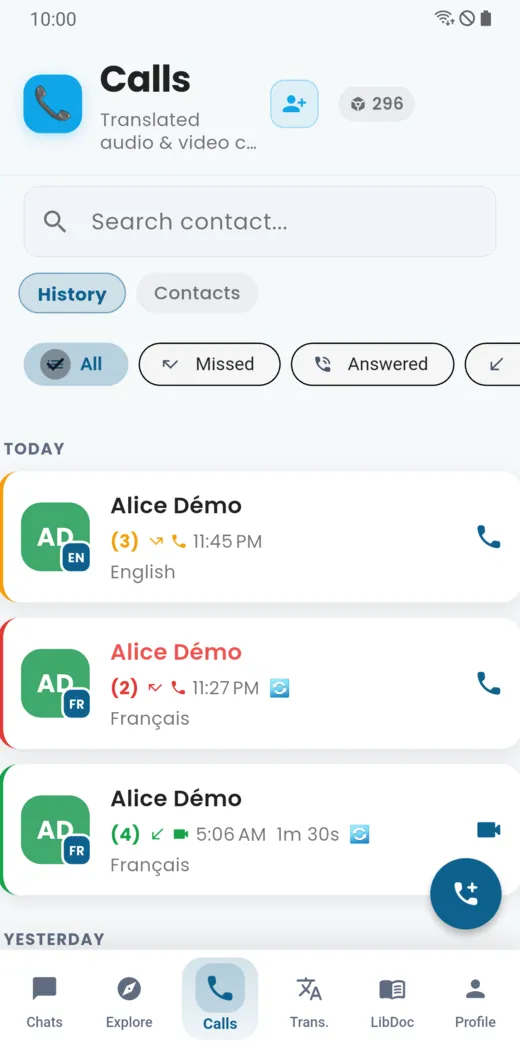
The Calls tab keeps the history of your calls: all, missed, answered or incoming.
During the call
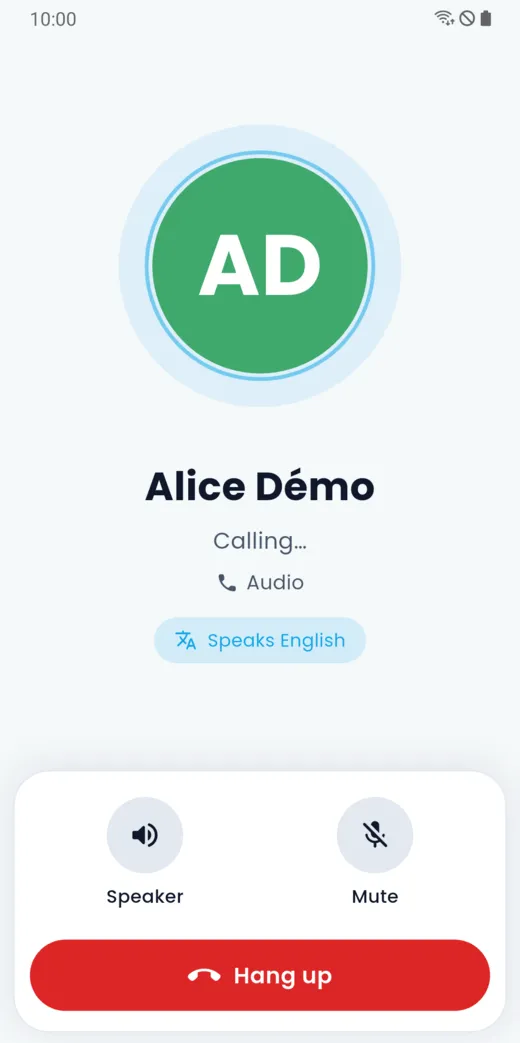
The screen shows the person you are calling and the language they speak. You have:
- Speaker, to hear without holding the phone to your ear;
- Mute, to turn off your microphone;
- Hang up.
During a translated call, subtitles appear in your language as the other person speaks.
Answer a call
When someone calls you, the call screen shows two buttons: Decline (red) and Accept (green). If your phone is locked, the call appears full screen and the phone rings. The ringing stops as soon as you answer or the caller hangs up.
Leave the app during a call
If you go back to your phone’s home screen during the call, a permanent “Call in progress” notification stays on screen and the call carries on. Tap it to return to the call: the timer has kept running. Hang up and the notification disappears.
What calls cost
Each plan, the free one included, includes a daily amount of audio call time without translation. Beyond that, and for video, a call uses a few tokens per minute. Packs and subscriptions are on the Pricing page of the site; the price per minute is shown in the app. See the guide “Tokens, subscriptions and payments”.
If the call does not go well
The “Troubleshooting” guide covers missing sound, microphone and ringing problems.
Doesn’t this page answer your question?
Ask it in the help window, or write to support@libcomplus.com.
Ask a question